What Pulpo SVG is
Pulpo SVG is an SVG editor for the phone that is built around a project folder, not a single file, and that treats files made in Inkscape as something to preserve rather than to convert.
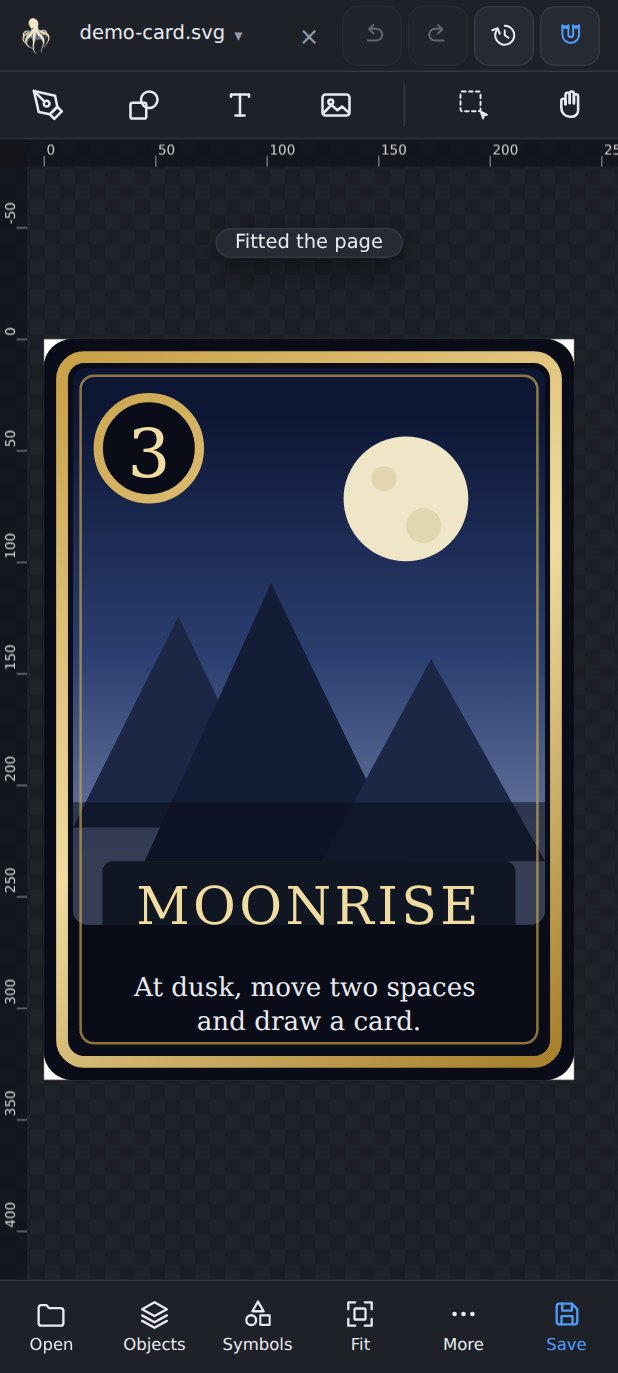
Two decisions explain most of how it behaves:
- It is project-oriented. A card game, a set of icons or a booklet is many files sharing one base template, linked images, symbols, palettes and fonts. Pulpo mounts the folder that holds all of it, so relative links keep working instead of breaking the moment you open a file on your phone.
- It preserves what it does not understand. When you save, only what you actually changed is rewritten. Layers, labels, node types, gradients and units survive the round trip, so a file can go to the phone and come back to Inkscape still being the same file.
It runs as an Android app, from Google Play.
Mount your project
This is the first thing to do, and the one that makes everything else work. Mounting grants the app access to one folder on your device — the app never goes looking outside it.
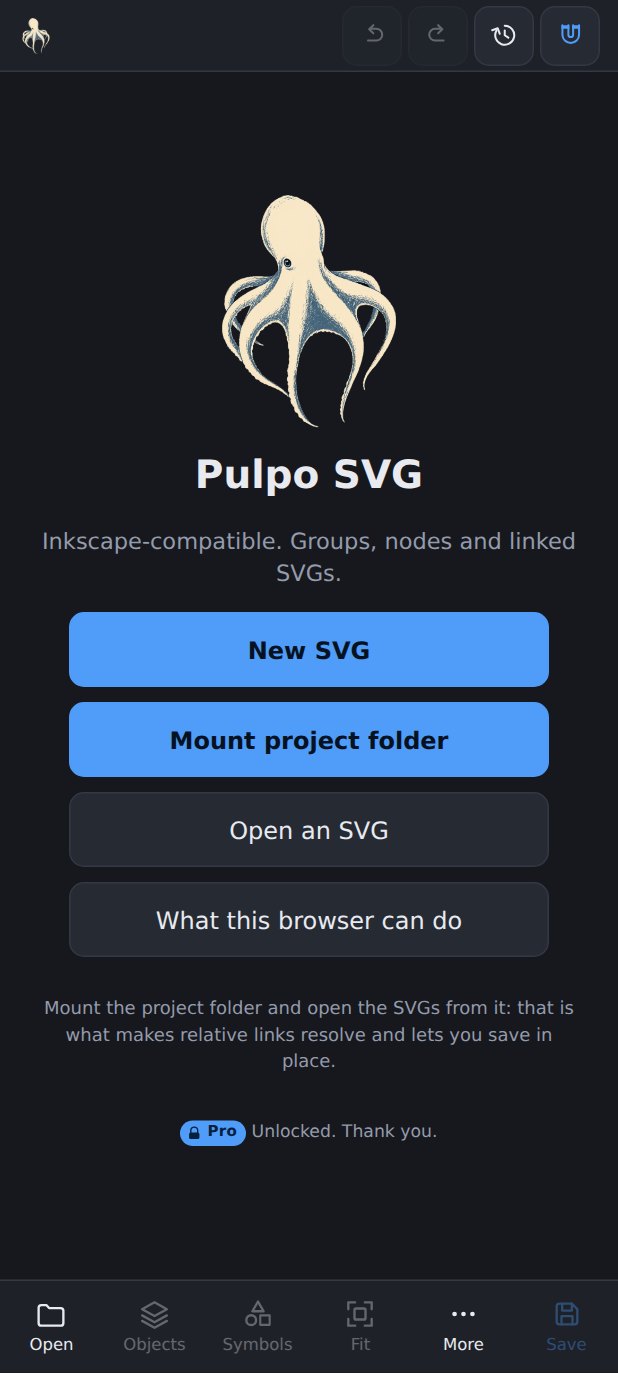
- Open the app and press Mount project folder on the home screen.
- Pick the folder that contains your SVGs and everything they refer to.
- The app indexes it once and tells you how many items it found.
Choose the folder that is the root of the project, not the subfolder
with the file you want right now. If a card in Exp1/Cards/ links an
image in Art/, both have to be inside what you mounted for the link
to resolve.
The folder permission is granted once and never asked about again, it survives restarting the phone, and files go out to other apps through the system share sheet.
Finding your way around
There is a canvas, a title bar, and panels that slide over the canvas. The octopus icon takes you back to the home screen without closing anything; tap it again to return to your document.
Panels you will use most:
| Panel | What it is for |
|---|---|
| Objects | The tree of everything in the document, with Inkscape's own names. Visibility, locking, stacking order, grouping. |
| Properties | Numbers for the selection: position, size, rotation, fill and stroke. |
| Node | The exact coordinates of the selected node, typed rather than dragged. |
| Tools | Pen, rectangle, ellipse, text, convert to path. |
| Project | Browse the mounted folder and open files from it. |
| Links | Every linked image and SVG, and whether each one resolves. |
| Fonts | Which fonts the file asks for, and which one is actually being used. |
| Export, Share | PNG and JPEG, and handing a file to another app. |
| GitHub | Commit, push and pull the mounted project. |
| About | Version, what changed lately, diagnostics, and the form for reporting a problem. |
Documents and tabs
You can keep several documents open at once and copy between them — which is the point when you are laying out a series and want a piece from the previous card. Copy in one tab, switch, paste in the other.
Opening a file reuses an empty tab if there is one, so you do not end up with unnamed entries in the document list.
Objects and structure
The Objects panel is the document's tree, showing the labels Inkscape gave things rather than raw ids. From there you can:
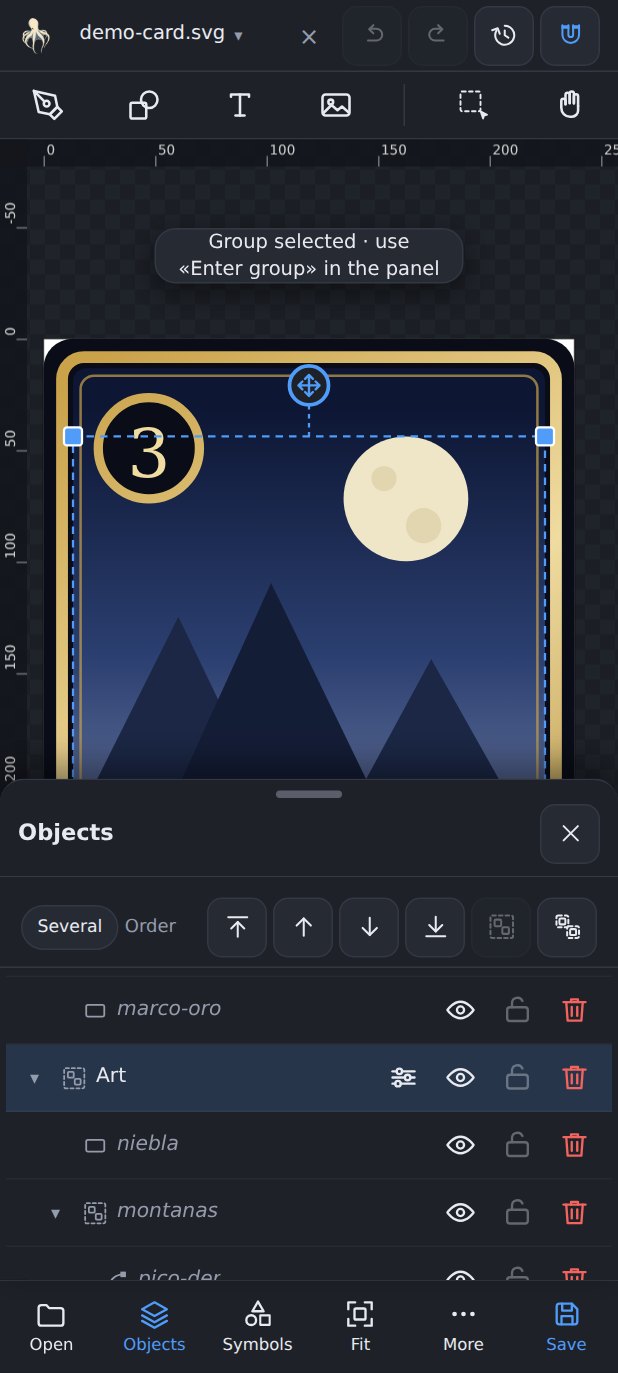
- Hide , show and lock objects and layers.
- Change stacking order ( ), group and ungroup , move something into another group.
- Rename , duplicate and delete .
- Copy and paste — including between documents.
On the canvas, tap to select. Tap again on overlapping objects to cycle through what is underneath. Drag on empty space for a rubber-band selection, and select several objects to transform or align them together.
Move, rotate, scale
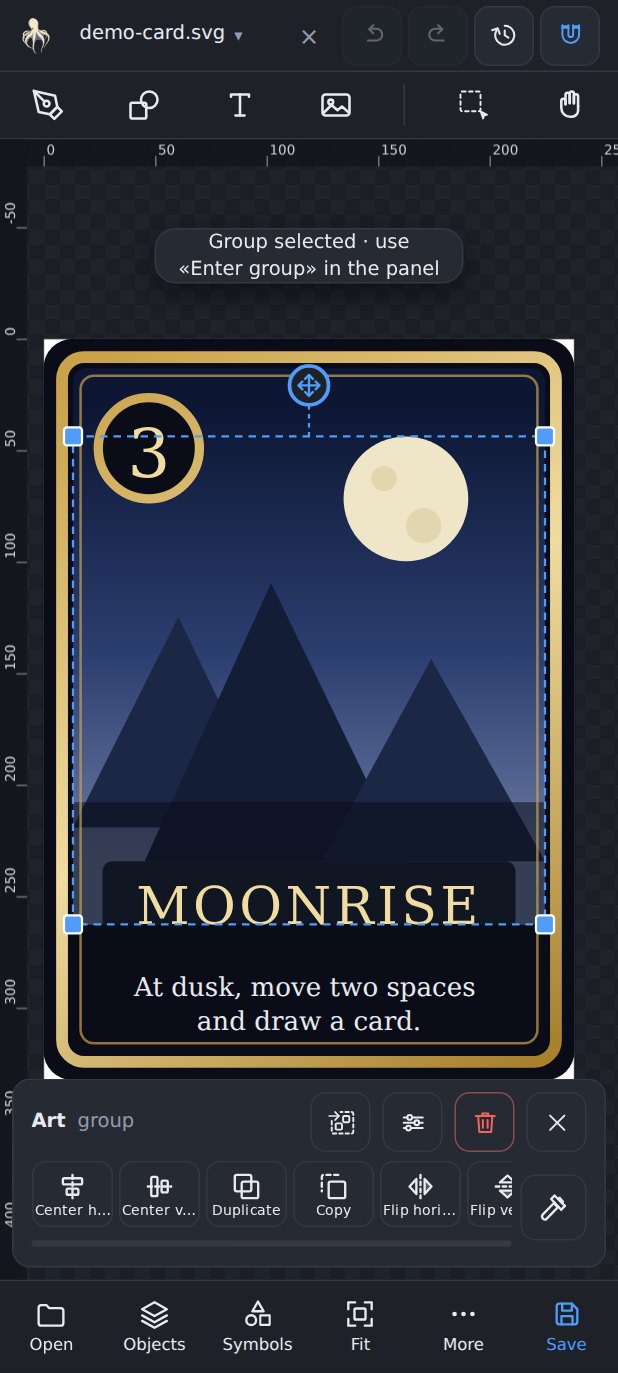
Selected objects get handles: drag to move, drag a corner to scale, and use the rotation handle to turn. Rotation snaps every 45°, and moving snaps to guides when you get close.
When a drag is not precise enough, the Properties panel takes typed numbers in the document's own unit — millimetres if that is what the file uses. It also has align and distribute ( ) for several objects at once.
Paths and nodes
Node editing works on several paths at once, which matters when a shape is really three overlapping pieces.
- Drag nodes and their handles; insert and delete nodes.
- Set the node type — corner , smooth or symmetric — exactly as Inkscape means them.
- Merge two nodes , split one , join with a straight segment , delete a segment .
- Joining two nodes from different paths combines them into one path, like Inkscape does.
sodipodi:nodetypes stays in sync with what you do, so the file keeps
describing its own curves honestly when it goes back to the desktop. Cutting a
path separates it: whatever ends up loose becomes its own object, and orphan
nodes are swept away.
For a node that has to land on an exact coordinate, the Node panel lets you type it.
Drawing new shapes
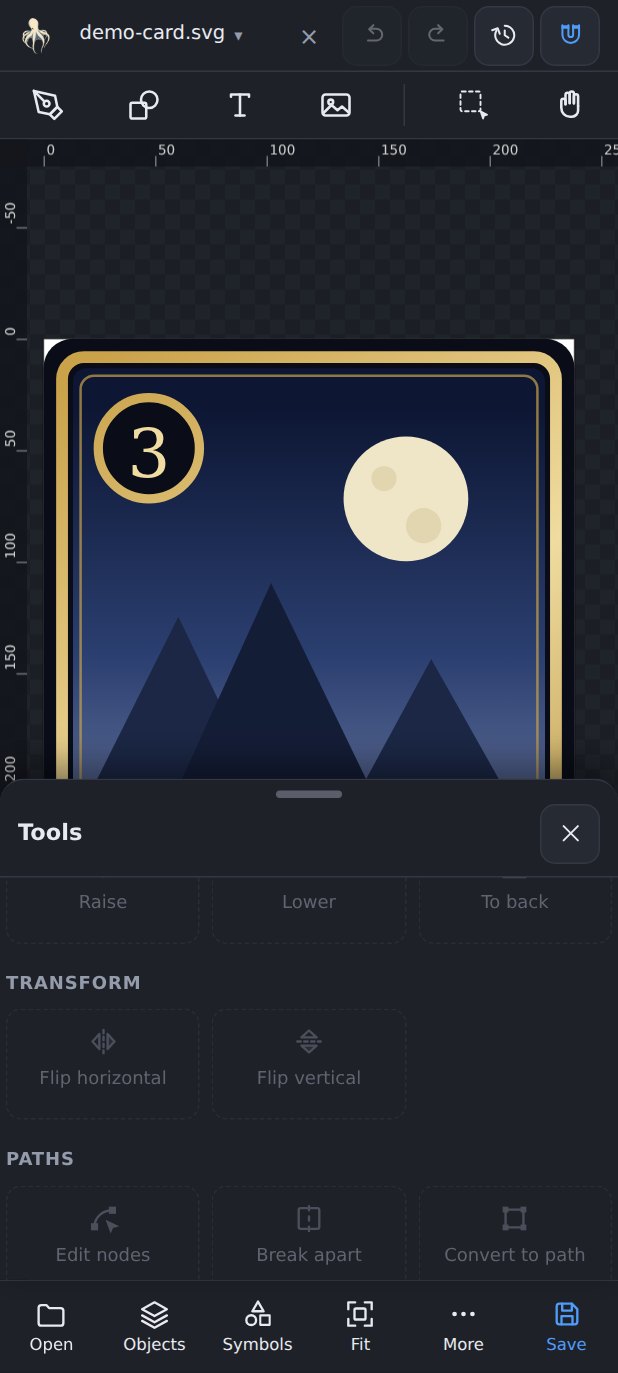
The Tools panel has the drawing tools. Magnetic snapping helps line new geometry up with what is already there.
A rectangle or an ellipse is still a shape, not a path. When you need to edit its nodes, use convert to path first — the same order of operations as on the desktop.
Fill, stroke, gradients
Fill and stroke are set from Properties. Gradients are edited directly on the canvas with handles you drag where you want the colour to go.
Pulpo respects Inkscape's two-level gradient model — the definition and the positioned use of it are kept separate — so a gradient shared by several objects stays shared instead of being silently duplicated.
Palettes
The Palettes panel keeps the colours of the project within reach. You can extract a palette from the artwork you already have, so the colours you are using become the colours you can pick.
.gpl palettes — the format Inkscape and GIMP use — and
extracting a palette from a drawing.
Images and linked SVGs
When you place an image, Pulpo asks the question that matters:
- Embed it — the image travels inside the SVG. Always available, makes the file bigger, and the copy inside stops following the original.
- Link it — the SVG points at a file in the project folder. Keeps files small and lets one image serve many cards, but needs a mounted folder and a document saved inside it. Linking copies the image next to the document without overwriting anything already there.
Images come in at their own aspect ratio and real size, not stretched into a generic box.
The Links panel lists every linked image and SVG and tells you which ones resolve. From there you can view them, re-link a broken one, reload one that changed on disk, embed a linked file or extract an embedded one.
Text and fonts
Text has family, size and content, edited in a single field even when it spans several lines.
Fonts are where a phone usually lies to you: it silently substitutes what it does not have and the layout quietly shifts. The Fonts panel says it out loud — which fonts the file asks for, which one is actually being used for each, and a button to adopt the substitute so the file states what it really uses.
The reliable fix is to put the real font files in the project folder; they are then found the same way linked images are.
Symbols
Symbols are your library of reusable pieces for the project: a frame, a mana icon, a rarity badge. Insert one many times instead of copying it many times.
Effects
Effects act on images in the document. Beyond the ones that ship with the app you
can write your own — the format is documented in the project's
docs/EFFECTS.md. Drop an effect file into the project folder, refresh,
and it appears alongside the built-in ones.
Export and share
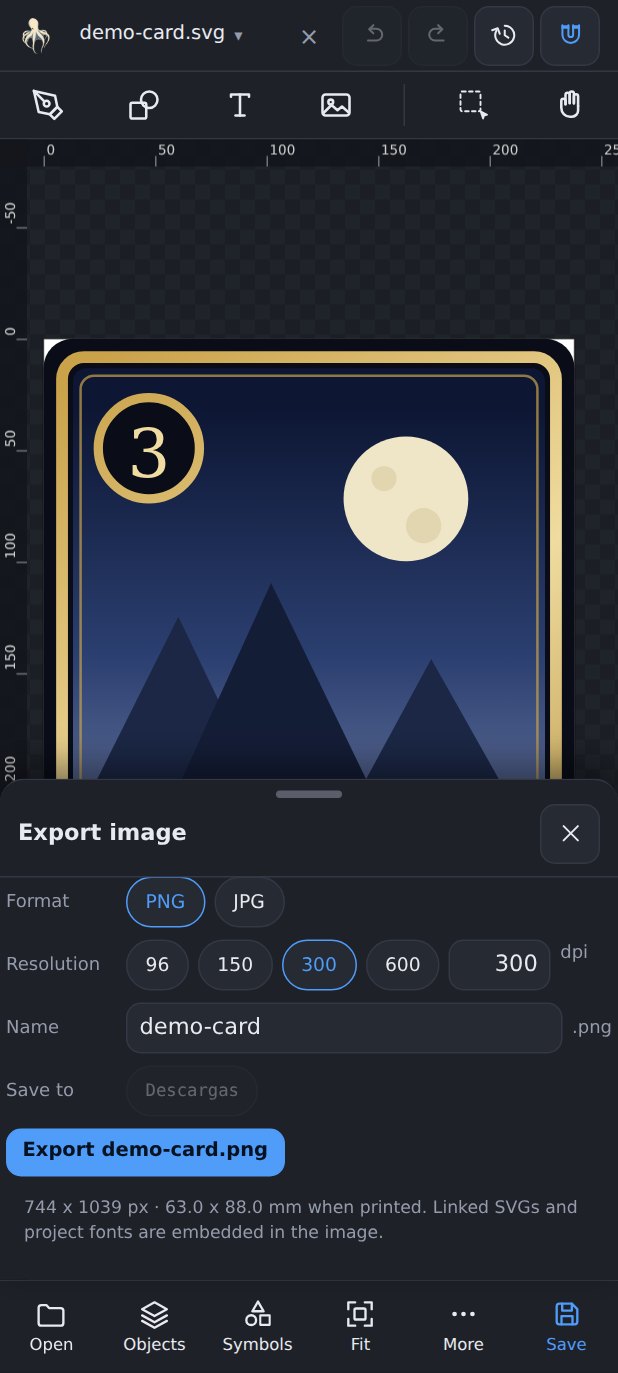
Export image writes PNG or JPEG at the dpi and physical size you choose, defaulting to the folder of the SVG you are working on. Fonts and linked SVGs are baked into the image, so what you export is what you saw.
Share hands the file to any other app through the system picker — messaging, cloud storage, a printer.
Saving, opening and sharing SVG files is free, always. Your work never stops being an ordinary SVG file on your own device.
GitHubPro
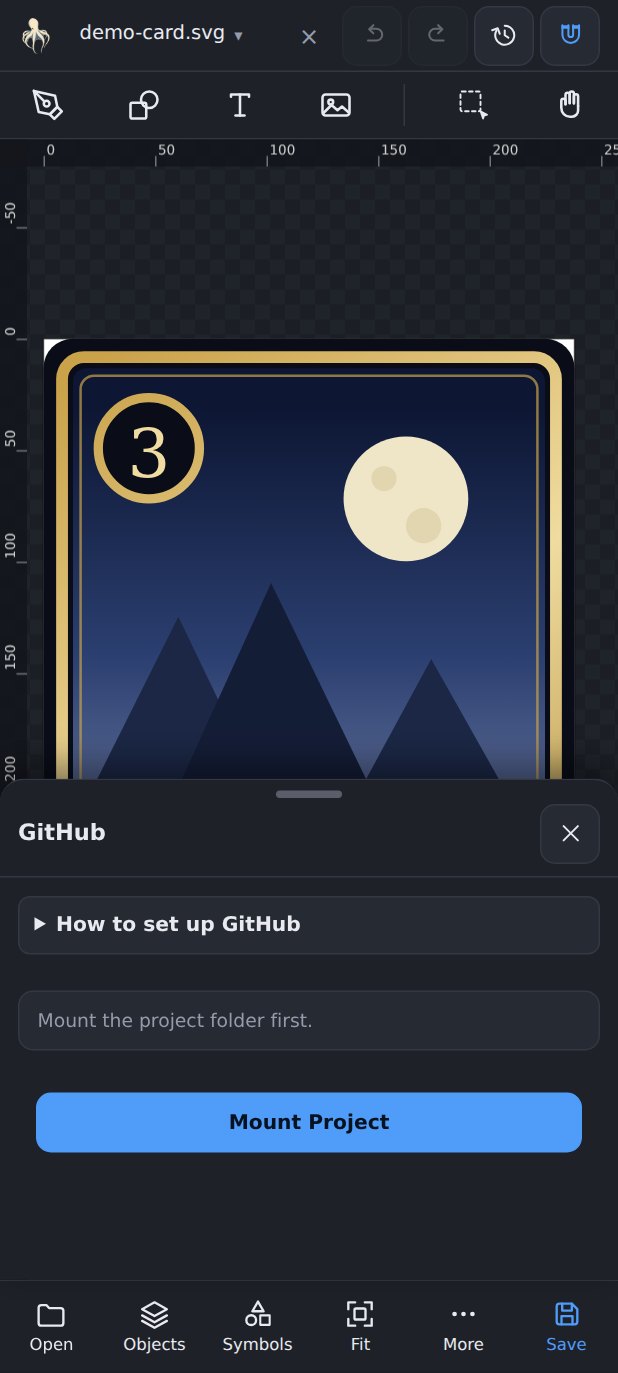
The GitHub panel links the mounted folder to a repository you already own, and lets you review changes, commit, push and pull from the phone.
.git; you do not pick them, so a project can never be
linked to an unrelated repository and overwrite it.
Connecting
- Mount the folder that is the clone.
- In the GitHub panel, press Create token on GitHub. Your browser opens.
- Sign in and make sure Fine-grained tokens is selected. Press Generate new token.
- Name it something like “Pulpo SVG” and pick an expiry date.
- Under Repository access, choose only the repositories Pulpo may touch.
- Under Permissions, grant Contents: Read and write. Metadata is added automatically.
- Generate the token, copy it, paste it into the app and press Connect GitHub.
The panel then names the repository and branch it read from the folder, and all that is left is to press Link project. Linking downloads nothing and overwrites nothing. If the folder is not a clone, is on a branch other than the one linked, or has a detached HEAD, the panel says so and does nothing — and it checks again before every commit, push and pull, because a folder can be moved to another branch from a terminal at any time.
Working
Changes lists what differs from the last commit. Tick what belongs in this commit, write a message, and press Commit — that creates the commit but does not publish it. Push publishes it, and refuses if GitHub moved in the meantime so nothing is overwritten by accident. Pull brings changes down, saving a backup before writing anything, and asks you to pick a side for any file that changed in both places.
A console shows what each operation is doing, file by file, and how it ended.
It keeps the folder's own Git up to date
Pulpo talks to GitHub's API rather than running Git, but after every push and pull
it also updates the .git inside your folder: the objects, the branch
and the index. So git status in a terminal on the same folder comes out
clean, instead of insisting that everything you already published is still modified.
It only ever fast-forwards by one commit, and it steps aside — telling you why — if your local Git has work of its own, is on another branch, or has anything else it should not resolve on your behalf. A push or a pull is never made to fail by this.
.git —
not against the tip of the remote. So a file someone deleted on another machine
does not show up here as something of yours to commit; it arrives with the next
Pull. If the folder is moved from a terminal, the app notices and re-reads its
baseline.
Undo and recovery
- History. Steps are recorded as reversible changes, so you can walk back.
- Automatic copy. Unsaved work is copied aside every few seconds. If the app is closed unexpectedly, it offers the work back the next time it opens.
- Explicit saving. Writing to your folder happens when you ask for it, or when you turn on automatic saving to disk.
One thing worth knowing about GitHub: it only ever sees what is written to the folder. If a document has unsaved changes, the panel says so and offers to save everything before you commit.
Free and Pro
The free version is a real editor: open, edit and save your SVG files, with no watermark and no time limit, with up to two documents open at once.
Pulpo SVG Pro is a single payment, not a subscription, and adds:
- Unlimited documents open at once
- Exporting and sharing PNG and JPEG
- Symbols: your own library of reusable pieces
- Effects on images, including ones you write
- Imported
.gplpalettes and palettes extracted from your artwork - Google Fonts
- GitHub for mounted projects
It is tied to your Google account, so you get it back when you reinstall or change phones.
When something looks wrong
A linked image does not appear
Open Links: it will tell you whether the path resolves. The usual cause is that the image lives outside the folder you mounted — mount the parent folder instead. If the file moved, re-link it from that same panel.
The text looks different from the desktop
Open Fonts. It names the font the file asks for and the one being used instead. Copy the real font file into the project folder, refresh, and it will be found; or adopt the substitute so the file says what it actually uses.
Files I changed from a computer are not showing
The folder index is built when you mount. Refresh from Project files after changing things from outside the app.
“This kind of mount cannot be linked to GitHub”
GitHub needs a folder with a lasting identity — a mounted folder, not a single file opened on its own.
Something else
About → Support has a form for reporting a bug or asking for a feature. It sends the description, the version, and your email only if you tick the box. Your document is never attached. The same panel has a diagnostics screen that measures what your device actually allows, which is the first thing worth checking when mounting a folder misbehaves.